
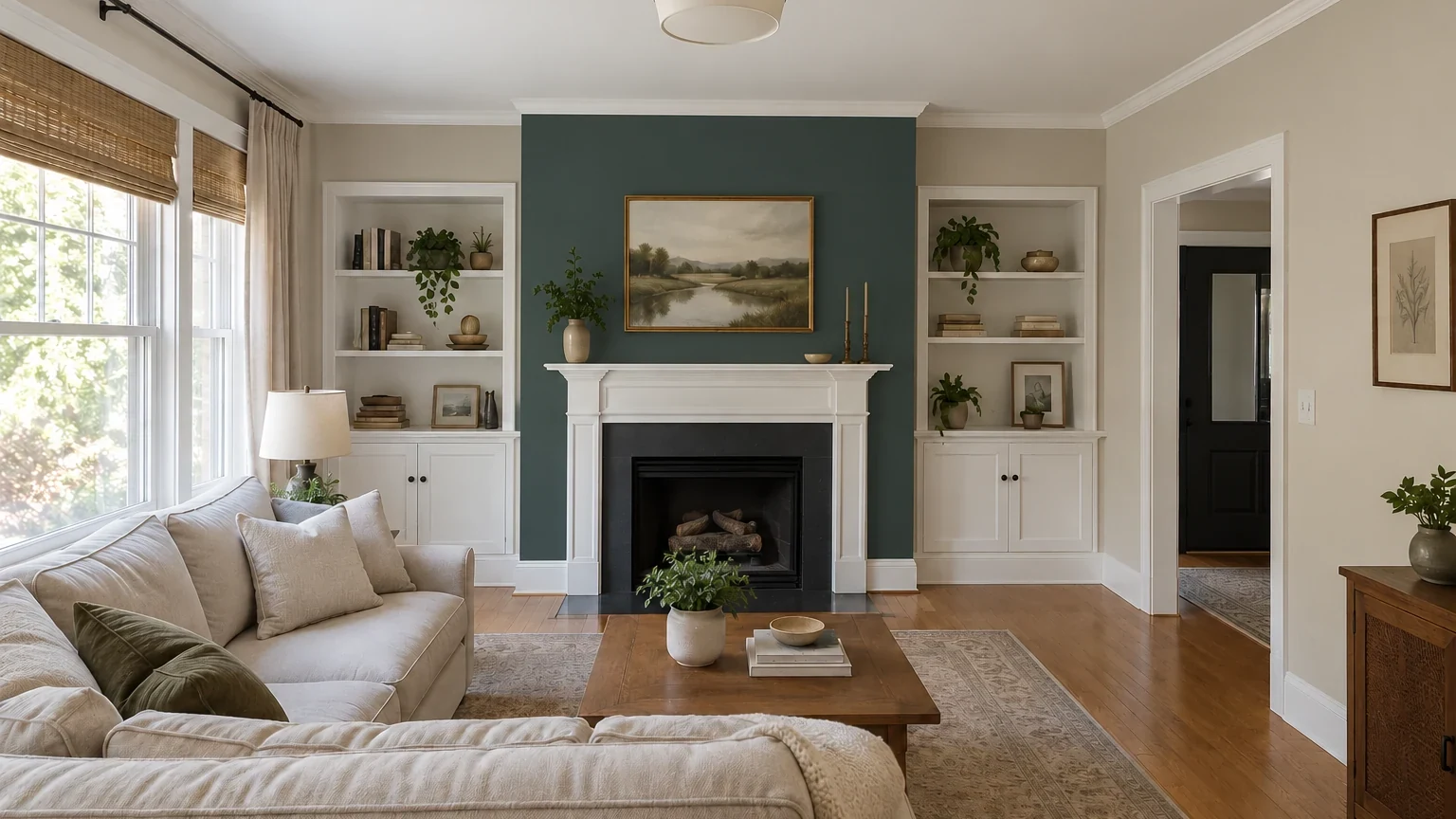
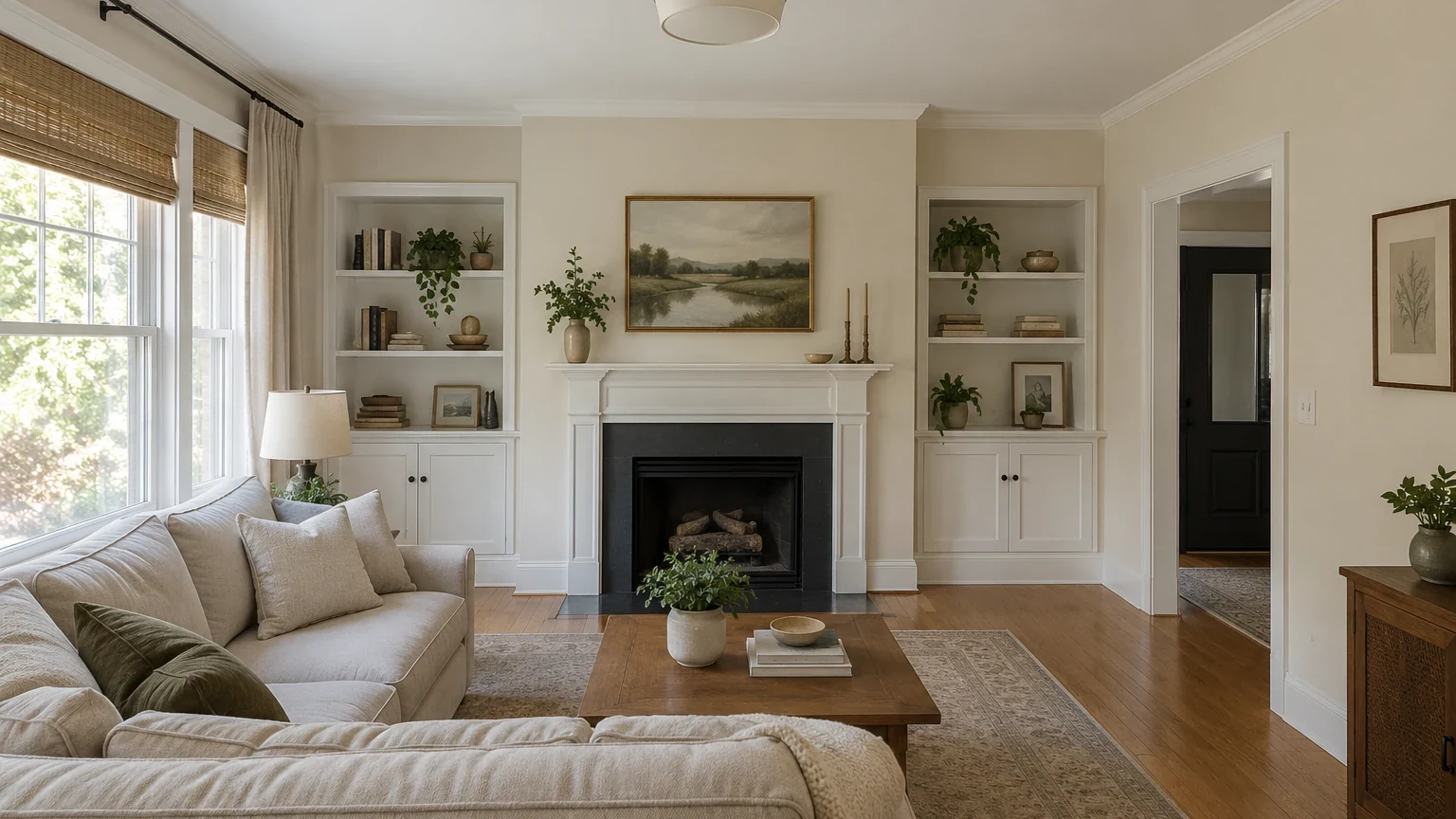
BeforeAfter
Choose your cookie settings
We use necessary cookies for sign-in, security, and features you choose. Analytics, marketing services, and proactive third-party sign-in prompts that use browser identifiers load only after you consent; authentication services may load immediately when you choose to sign in. View the Cookie Policy
AI Room Paint Visualizer Preview


Try sample images
Need a quick start? Choose a sample image below to explore the tool.
Living Room Walls

Bedroom Walls and Trim

Kitchen and Dining Walls

Upload a real room photo and use the paint visualizer to compare wall, ceiling, trim, or feature-wall color directions against your existing furniture and finishes. Shortlist the most useful concepts, then verify them with physical samples before buying paint.
Use the paint visualizer with the original room as the control. Compare one deliberate color direction at a time, then inspect walls, trim, fixed finishes, furniture, light, and geometry for unintended changes.
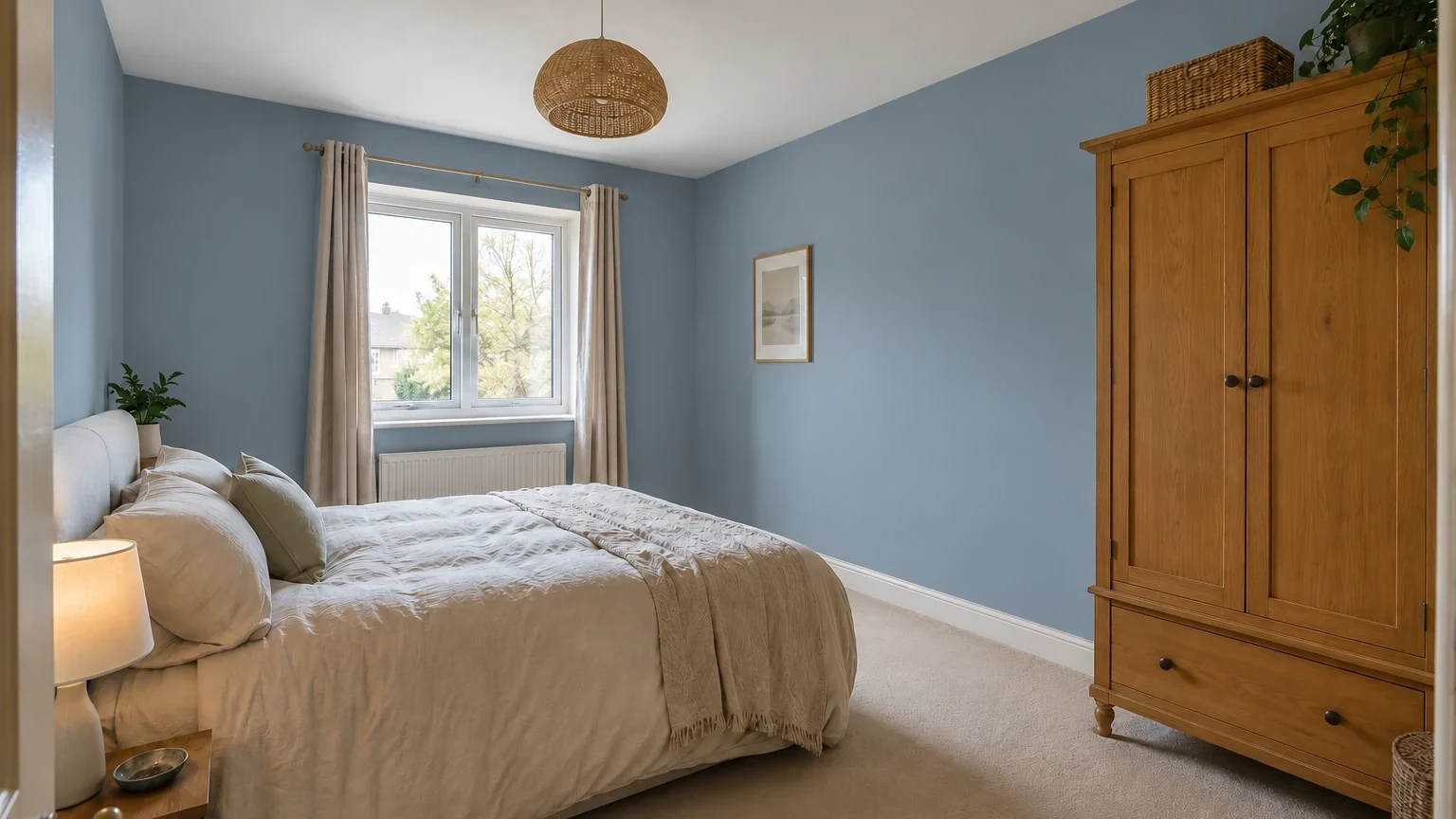
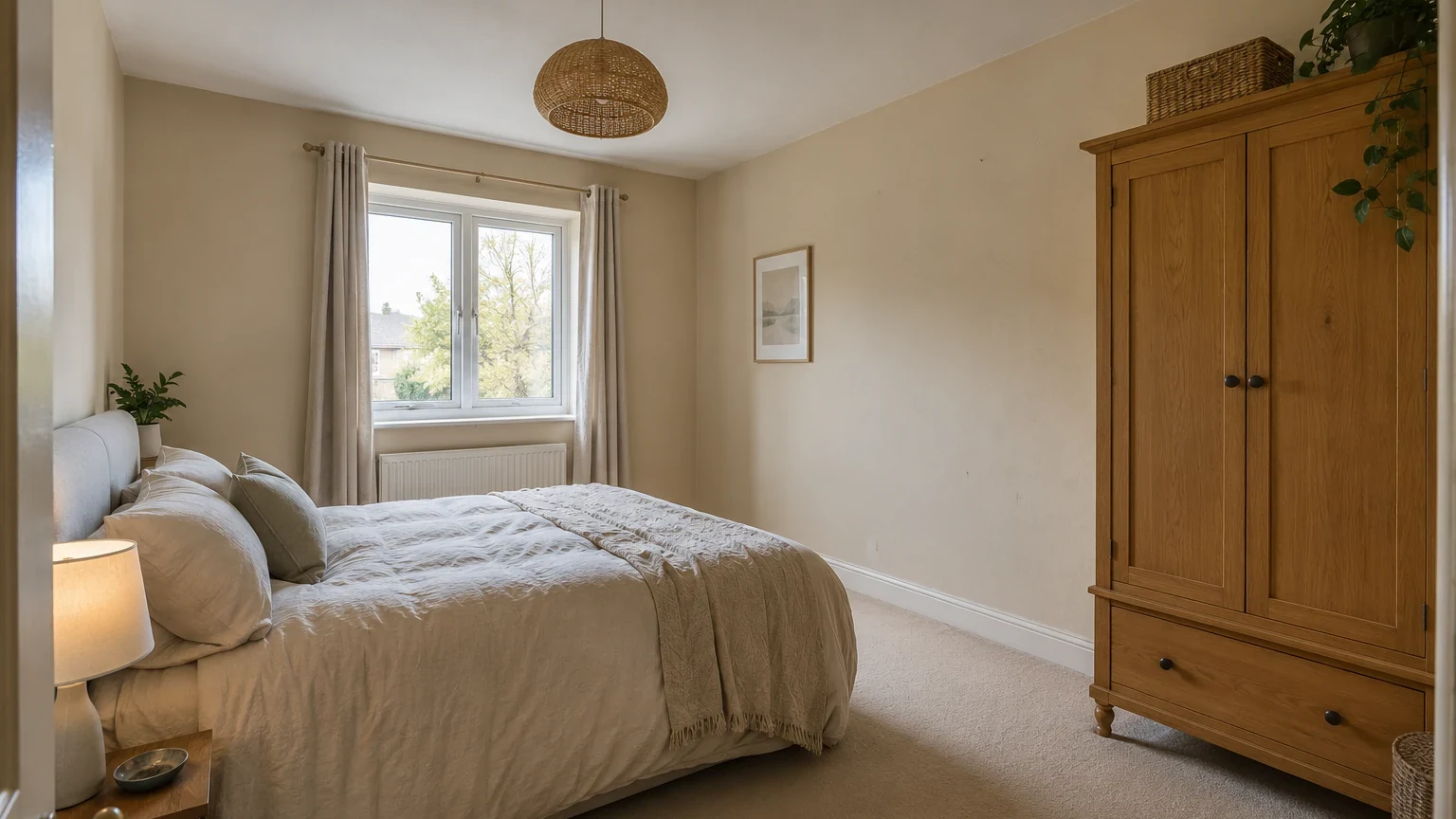
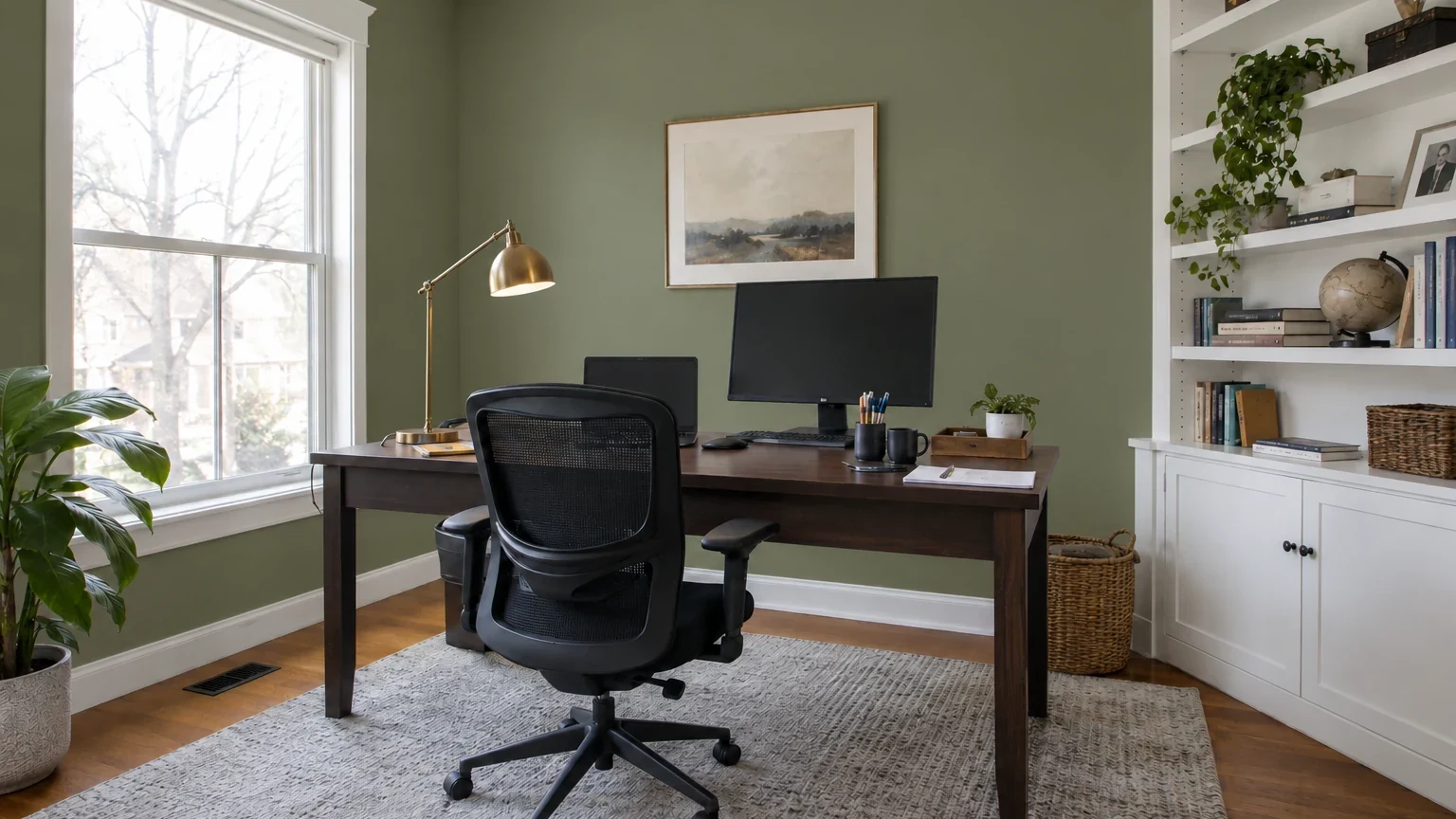
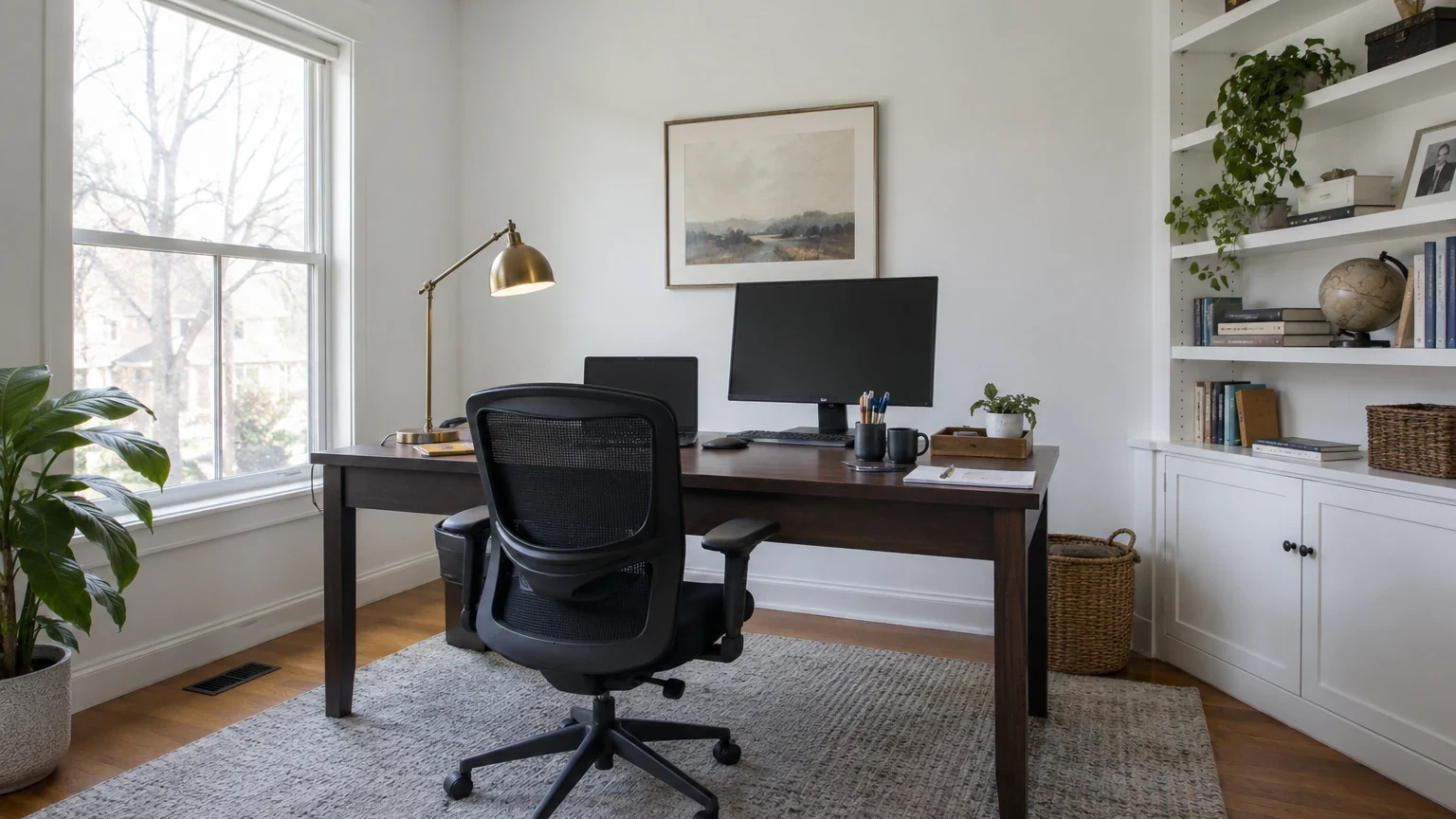
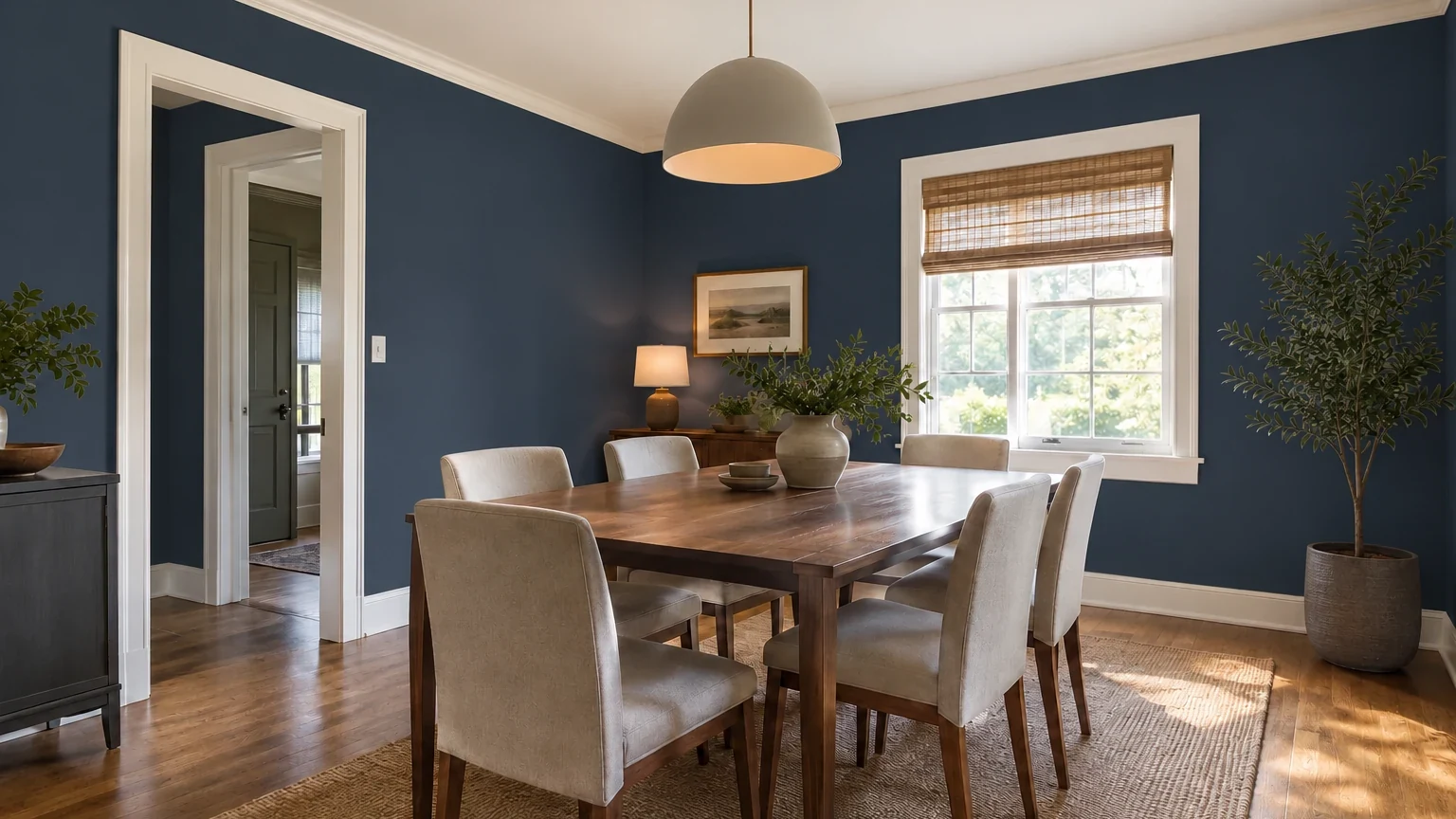
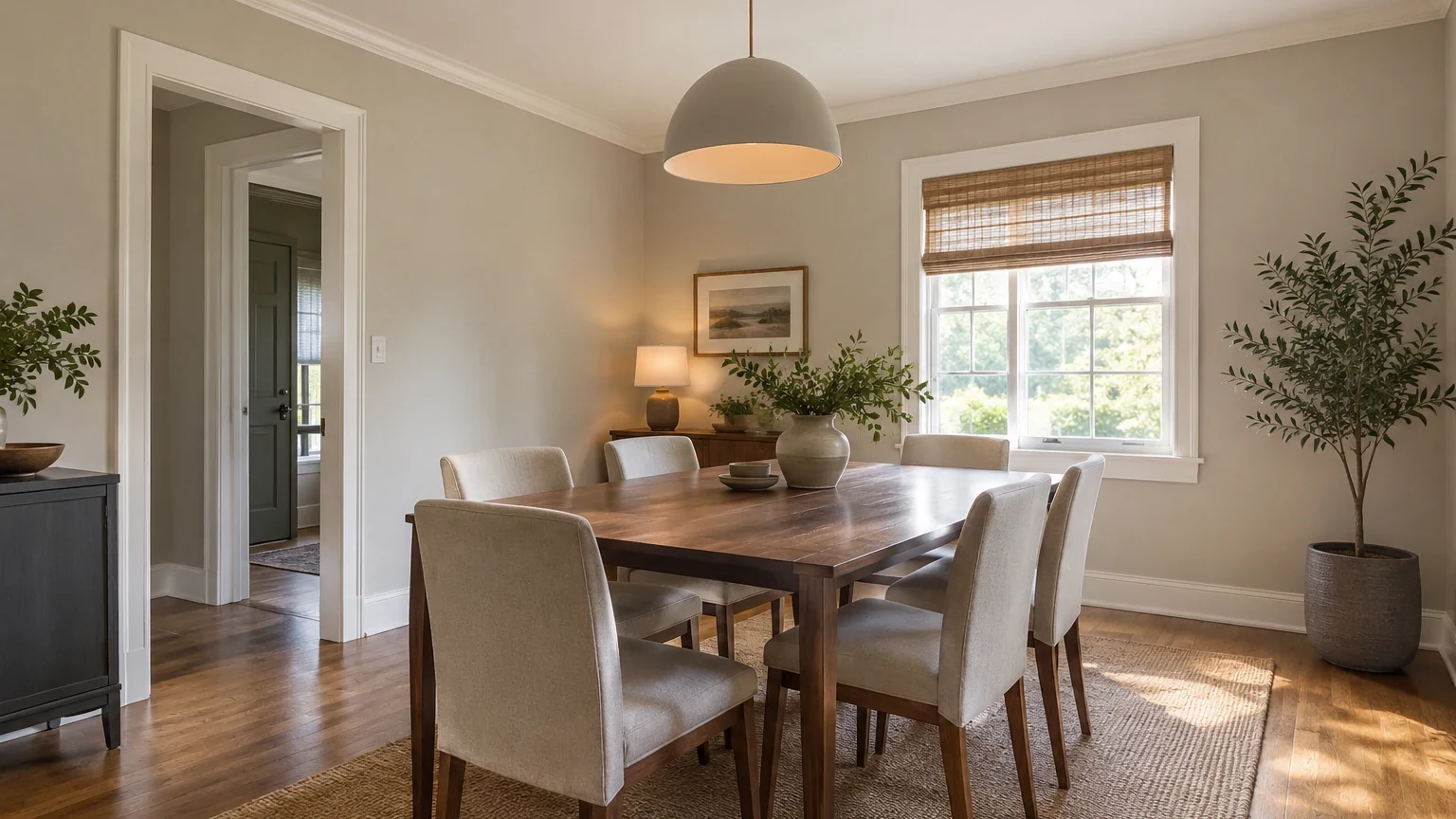
Use the Interior Design Ideas hub and its published room guides to identify the fixed materials, focal surfaces, lighting conditions, and mood cues that belong in your paint instructions.

Review focal walls, seating materials, timber tones, daylight, and visual balance before choosing a living-room paint direction.

Compare calm palettes, bedding, storage, warm wood, and morning light before writing a bedroom paint brief.

Check cabinet color, counters, backsplash, flooring, and task lighting before testing wall paint beside fixed kitchen finishes.
Start with a clear source photo, give the paint visualizer one controlled direction, then compare the generated options and verify finalists in the real room.
Step 01
Include the target walls, trim, ceiling, fixed finishes, furniture, windows, and enough natural light to judge the relationship between surfaces.
Step 02
Choose a palette family, name the surfaces and contrast to change, add optional references, and state what should remain, including flooring, furniture, cabinetry, openings, lighting, and camera angle.
Step 03
Create several options, reject results with geometry or object drift, then test finalists with physical samples under real daytime and evening light.
Each paint visualizer control supports a specific part of the decision: the source room, target surfaces, color direction, surrounding materials, retained elements, or the number of options to compare.
Treat each paint visualizer result as an early visual hypothesis. The real room, material system, physical samples, and product documentation remain the source of truth.
Have more questions? Contact us.
Upload a clear room photo, choose a paint direction, and describe the walls, ceiling, trim, or feature wall you want to change. Add keep notes and optional references, then generate several concepts and compare them with the original room.
ArchOne AI includes available free credits after sign in so eligible users can try room paint concepts. Image generation uses credits, and paid plans or credit packs are available when more results are needed.
Yes. Describe each target surface and the color relationship you want to explore. Clear instructions such as keep the ceiling white or repaint only the fireplace wall help guide the concept, but every generated result still needs visual review.
You can ask the AI to preserve furniture, flooring, windows, doors, lighting, and camera angle. These notes guide the edit rather than creating a guaranteed pixel lock, so compare every result with the original photo for drift.
No. Results are early visual concepts, not calibrated or exact paint matches. Camera white balance, exposure, screen settings, daylight, gloss, substrate, and adjacent materials all affect perceived color. Test finalists with physical samples in the real room.
Yes. Add a style, material, or mood reference to guide hue, contrast, and atmosphere. A photographed paint chip can provide a visual cue, but the result should not be treated as an exact brand color, product code, or specification.
Yes. Choose 1–4 images and keep the same source photo and preservation notes while changing one main color direction at a time. Compare the options for wall-to-trim contrast, fixed finishes, daylight, and overall room balance.
Verify the shortlisted direction with physical samples under morning, afternoon, and artificial light. Confirm sheen, substrate preparation, coating compatibility, quantity, and product availability separately; generated concepts are not paint specifications or construction documents.
Last updated: October 16, 2026
Use the broader interior generator when more than paint should change, or move from a color direction to room-specific concepts and quantity estimates.
ArchOne AI Studio
Open Studio when the paint direction needs to continue into broader room concepts, references, and side-by-side option review.
 One connected workspace
Explore furniture, materials, lighting, style, and broader room changes when the project has moved beyond a paint-only decision.
After narrowing the color direction, estimate paint quantity from room dimensions, coats, coverage, openings, and ceiling assumptions.
Compare cabinets, countertops, backsplash, island, lighting, storage, and broader remodel directions around the kitchen palette.

Upload a room photo, define the surfaces and elements to keep, and generate a shortlist of visual paint concepts for review and physical sampling.
Upload the room you need to repaint so the concept can be judged against its current light, openings, furniture, flooring, and fixed finishes.
Upload a room photoDescribe which walls, ceiling, trim, doors, or feature surface should change and whether the result should be tonal, low contrast, or deliberately bold.
Write paint instructions
Add a furniture, fixed-finish, palette, or mood image to communicate the warmth, contrast, and atmosphere the concept should work with.
Add references
Generate 1–4 concepts, keep the source and preservation notes consistent, and vary one principal paint direction to make comparison easier.
Compare paint options