
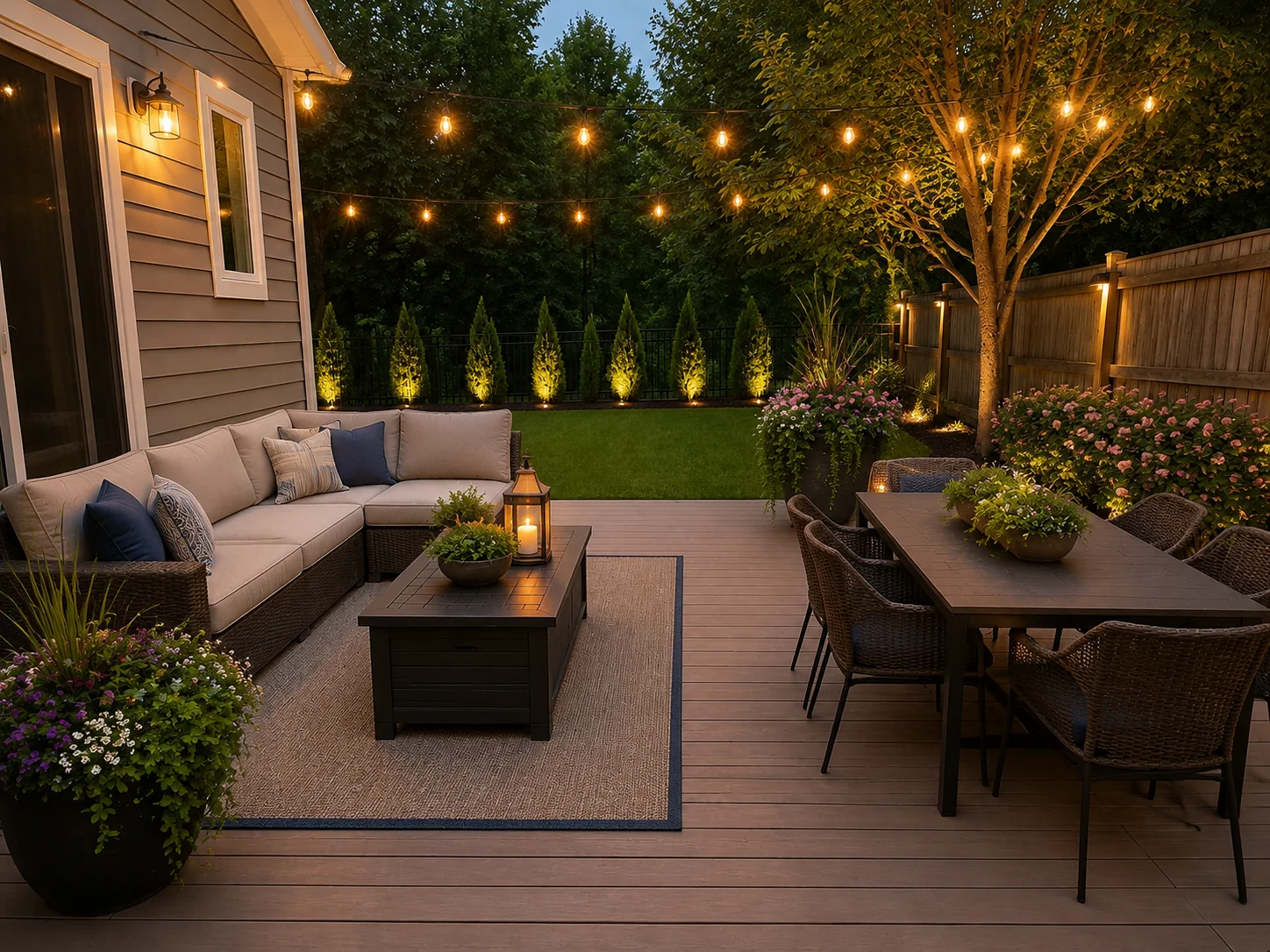
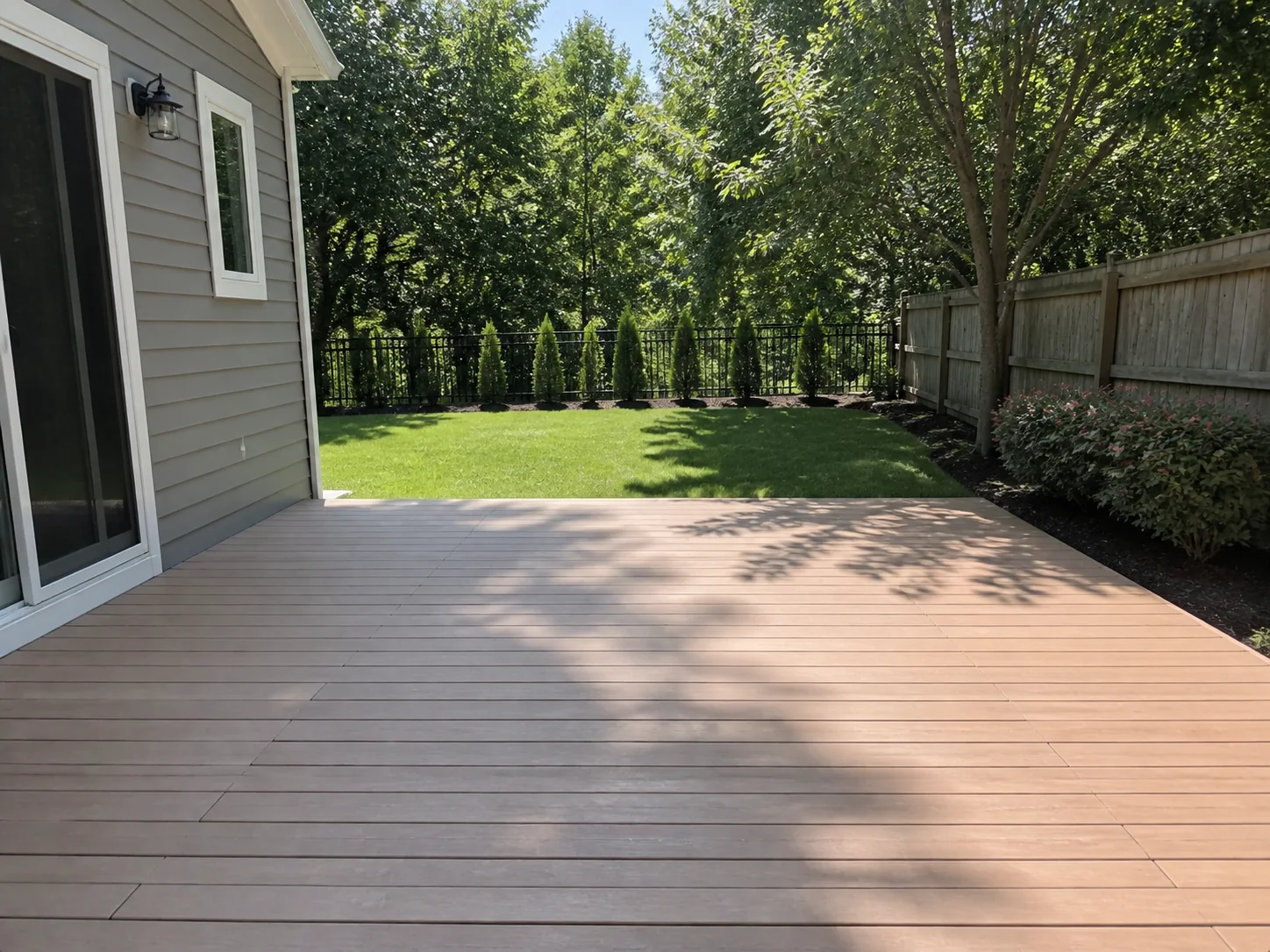
BeforeAfter
Patio Seating and Planter Concept
Start with a patio photo. Keep the patio edge, house wall, doors, and steps recognizable. Compare the seating zone, planters, privacy, and walking path.
Choose your cookie settings
We use necessary cookies for sign-in, security, and features you choose. Analytics, marketing services, and proactive third-party sign-in prompts that use browser identifiers load only after you consent; authentication services may load immediately when you choose to sign in. View the Cookie Policy
AI Patio Design Preview


Try sample images
Need a quick start? Choose a sample image below to explore the tool.
Patio Seating Concept

Backyard Patio Dining

Fire Pit Patio Mood

Upload a patio photo and compare early AI patio design concepts. Test patio style, dining, lounge seating, shade, privacy, planters, fire features, and lighting.
See how a patio photo can become early visual options. Compare patio style, dining, lounge seating, shade, privacy, planters, fire features, and lighting.
Start with a patio photo. Keep the patio edge, house wall, doors, and steps recognizable. Compare the seating zone, planters, privacy, and walking path.
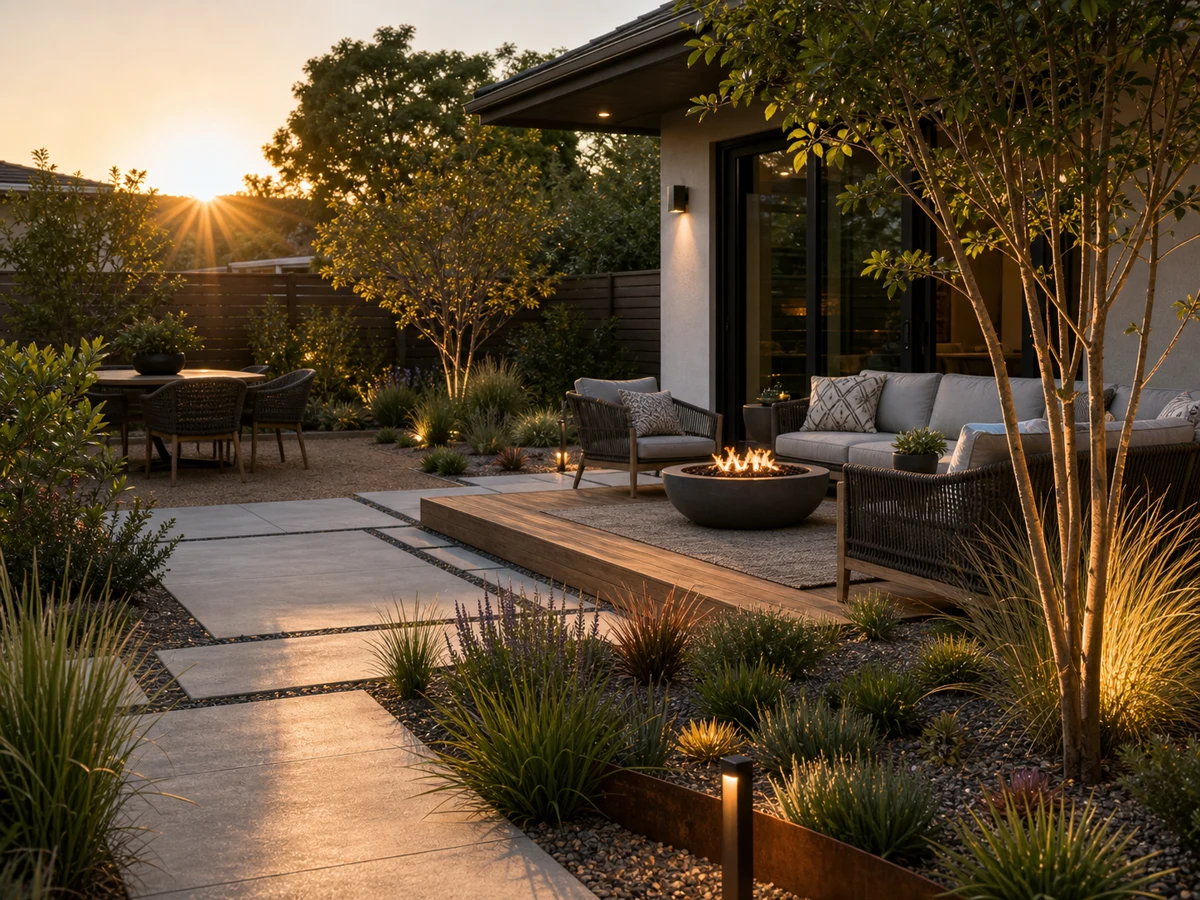
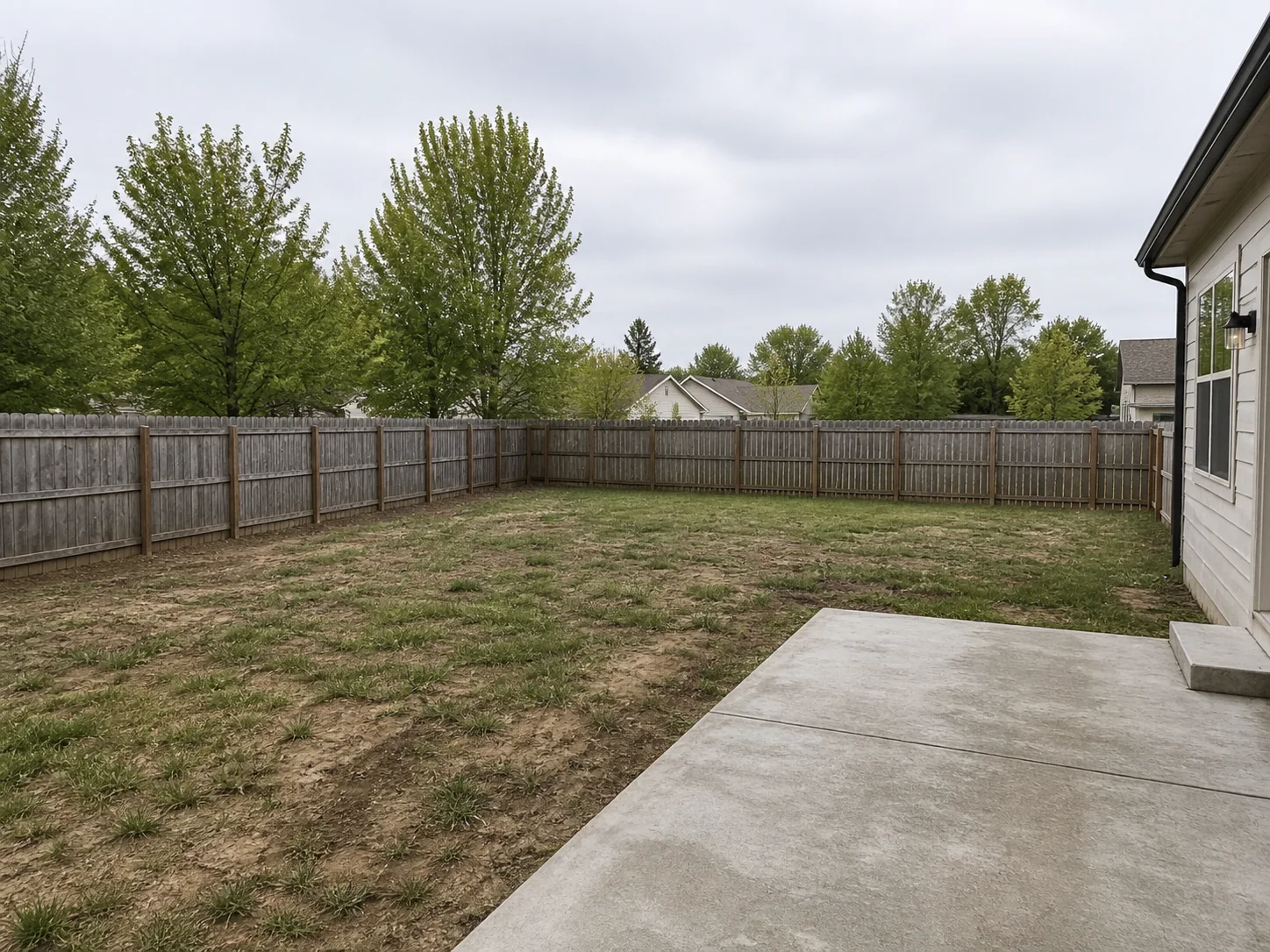
Use a backyard patio or deck-edge photo to test outdoor dining. Compare table placement, shade, planting, lighting, and the route from the house.
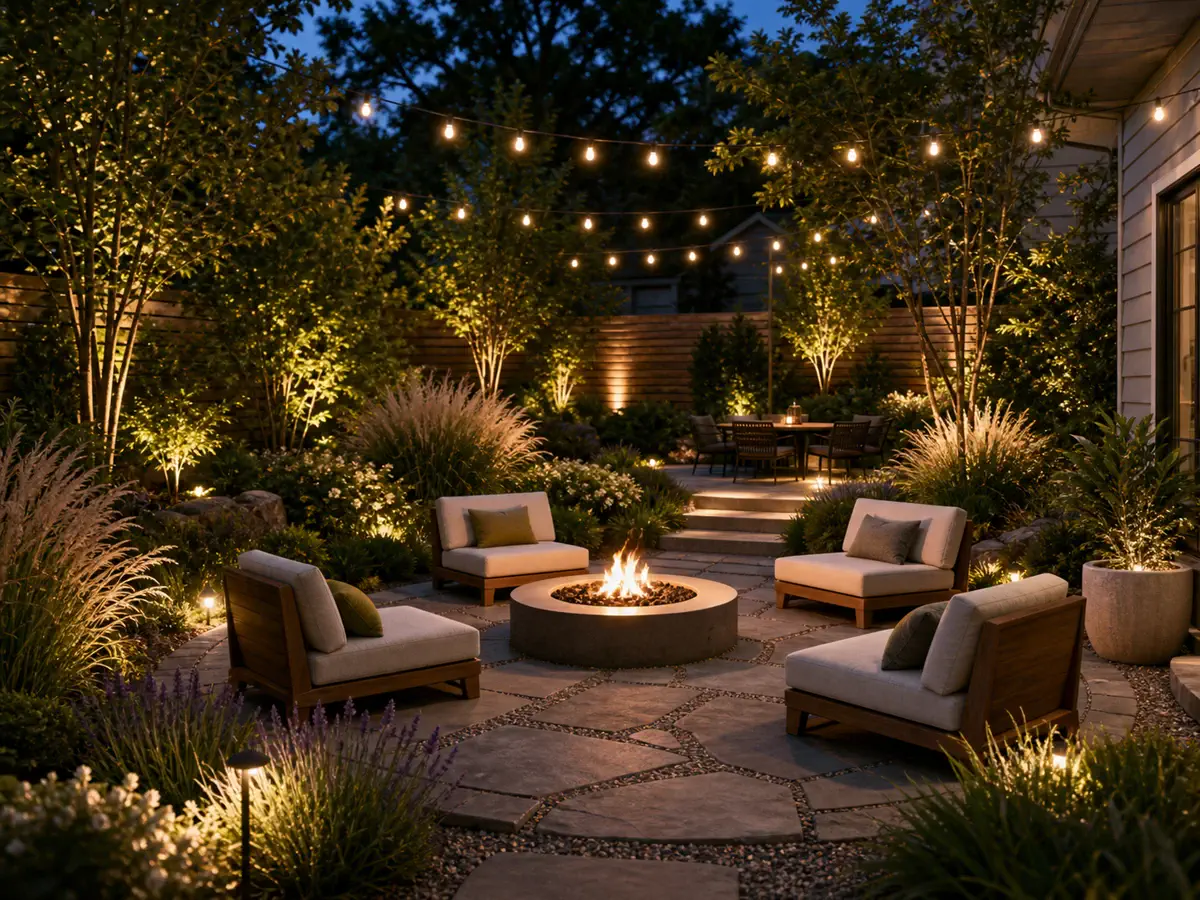
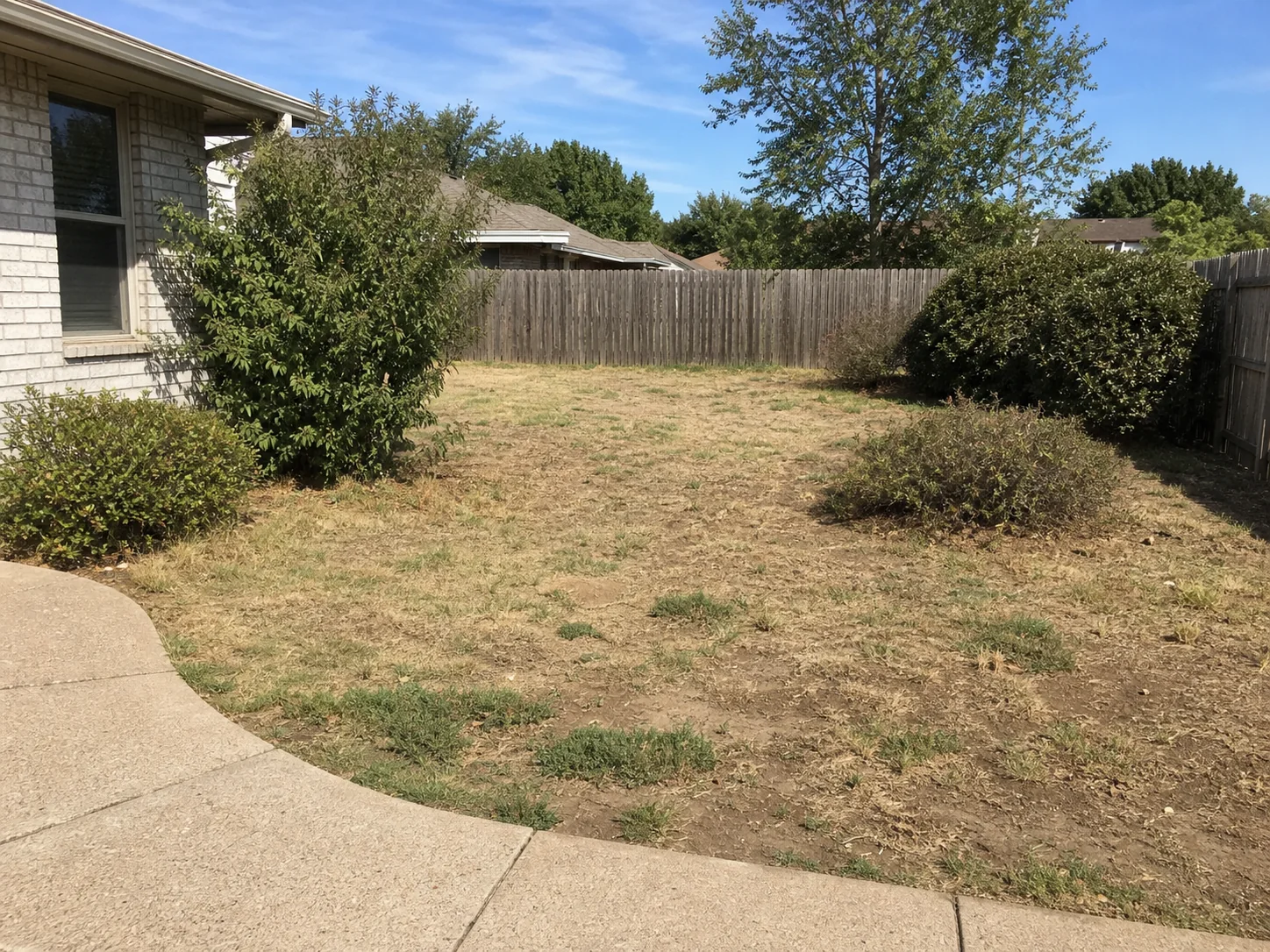
Explore a patio gathering area with a fire feature. Compare seating, planting edges, lighting mood, and open walking paths. Check real placement and safety details later.
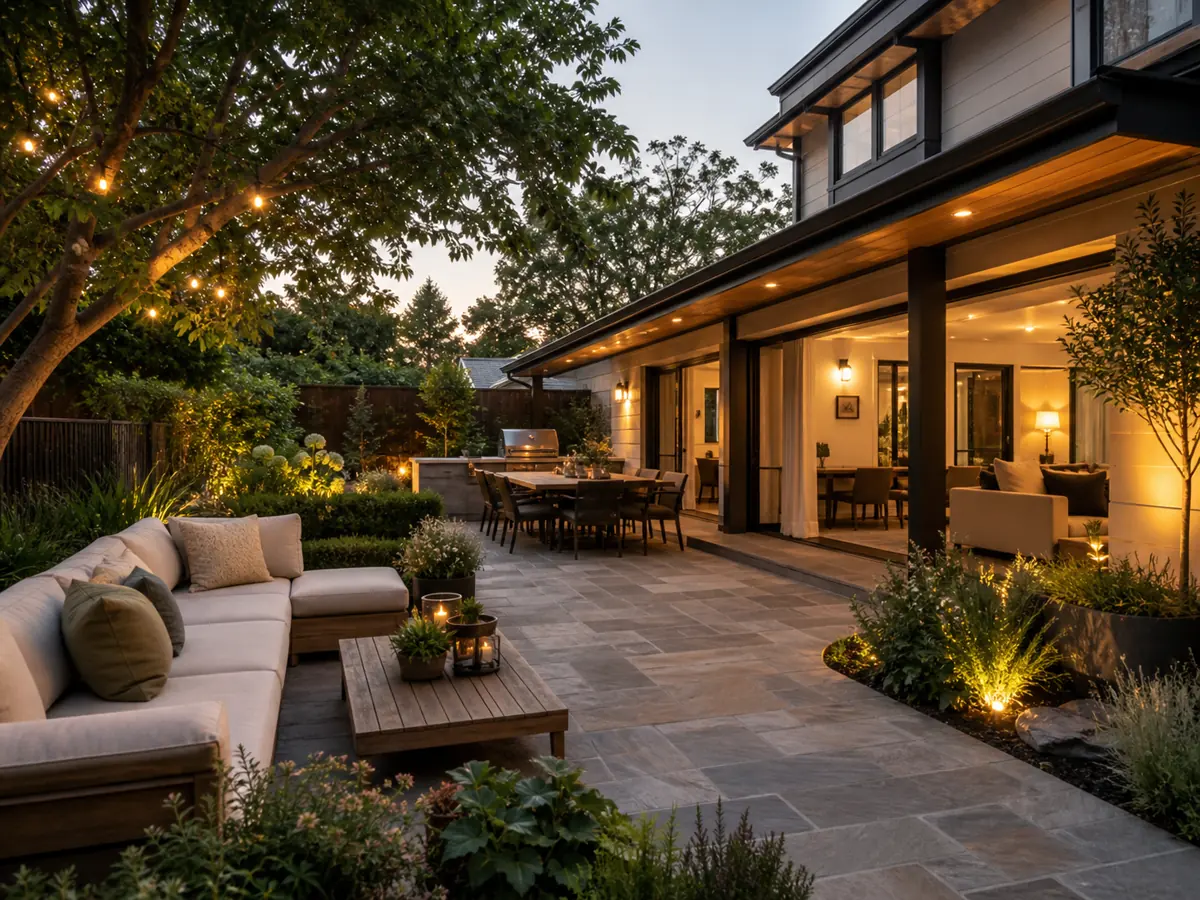
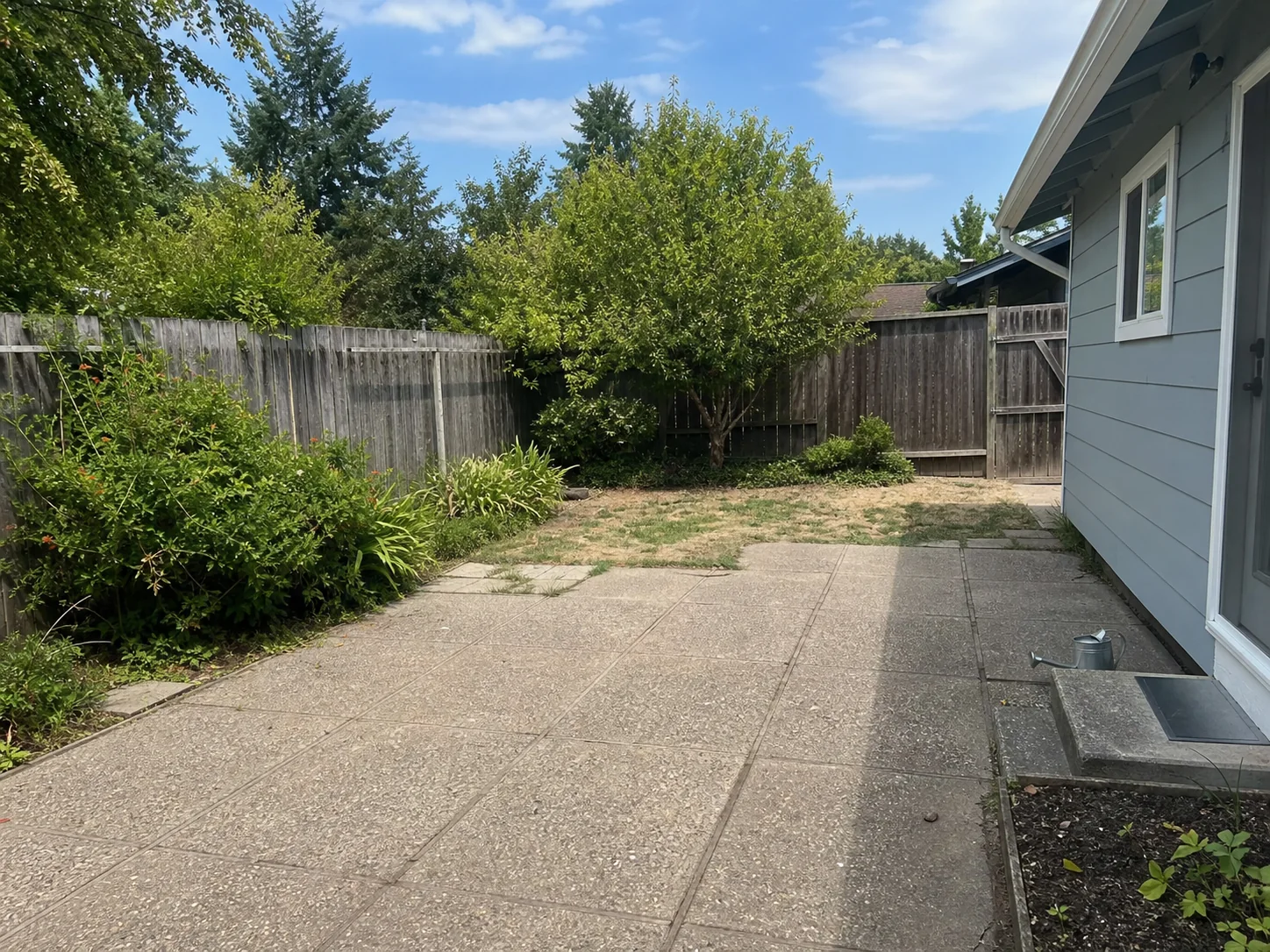
Use a small patio or courtyard photo to compare a compact direction. Test seating, privacy, planters, and lighting without crowding the walkway.
Start with a patio photo, sketch, or render. Set the patio direction, add notes or references, then compare early concepts before detailed planning.
Step 01
Upload a clear patio photo, sketch, or render. Include the patio surface, house wall, doors, steps, fences, and edges when they matter.
Step 02
Choose a patio style and the elements you want to test, such as paving, dining, lounge seating, shade, planters, privacy, fire features, or lighting.
Step 03
Note what should stay in place. Include doors, steps, patio or deck edges, fences, trees, slopes, and access routes. Add a reference image when you have a patio mood.
Step 04
Generate 1-4 patio concepts from the same input. Compare layout, seating, shade, privacy, paving, planters, lighting, and overall outdoor mood.
Use ArchOne AI to turn a patio photo, sketch, or render into early visual concepts. Choose a patio style, select elements, add references, and note what should stay fixed.
Start from a real patio photo, sketch, or render. Use a clear image that shows paving, doors, steps, edges, fences, planters or planting edges, and access points.
Useful when the concept needs to respond to your real patio, not a generic inspiration image.
Try a patio photo
Choose the patio style first. Then select the elements you want to test, such as paving, seating, dining, shade, planters, privacy, fire features, or lighting.
Useful when you want a clear visual direction before comparing patio changes.
Choose patio style
Upload a paving, furniture, shade, planter, privacy, fire pit, or lighting reference. Use it as a cue while the patio photo stays the main constraint.
Useful when you already know the material, furniture, or mood direction you want to test.
Add patio references
Tell the AI what should stay in place. Mention doors, steps, patio edges, fences, house walls, trees, slopes, utilities, and access routes.
Useful when you want a new patio mood while keeping the space recognizable.
Add keep notes
Generate one patio concept or compare up to four options from the same photo. Review different seating, shade, paving, privacy, or lighting directions.
Useful before a client review, family discussion, or first conversation with an outdoor professional.
Compare patio conceptsReview the original patio photo beside the generated concept. Use the comparison to judge changes before choosing what to refine.
Useful when you need a quick visual check of what changed and what stayed familiar.
Preview patio conceptsUse these broader landscape and yard guides to explore dining, seating, paving, shade, privacy, planters, lighting, and the route between a patio and the house. When the patio connects to a new or existing pool, continue with pool deck and patio design for coping, paving, seating, shade, planting, and lighting around the water.
Continue into pool design, broader landscape concepts, interior work, or exterior studies without leaving your ArchOne AI workflow.
ArchOne AI Studio
Review patio layout, paving, furniture, shade, lighting, and the adjacent landscape together as one design study.
 One connected workspace
Connect a patio or deck to a new or existing pool. Compare paving, coping, seating, shade, planting, and lighting around the water.

If the patio is part of a larger backyard plan, compare the full outdoor-living layout with decks, privacy, planting, lighting, and circulation.

Generate room concepts from photos, sketches, or references for materials, furniture, lighting, and style direction.

Explore facade updates, exterior materials, color palettes, entry details, and curb appeal directions.
Have more questions? Contact us.
Upload a clear patio photo. Choose a patio style and patio elements, then add keep notes. ArchOne AI creates early concepts for paving, dining, seating, shade, privacy, planters, fire features, lighting, and mood.
You can sign in to receive starter credits and try AI patio design. Each generated image uses credits. Paid plans or credit packs are available when you need more concepts.
Yes. Upload a patio photo, backyard patio, covered patio, small patio, deck edge, courtyard patio, sketch, or early render. A real photo helps the AI respond to your space.
Use a bright, steady photo that shows the patio surface, house wall, doors, steps, edges, fence, planters, and nearby planting. Avoid dark photos, tight furniture close-ups, and images that hide the patio boundary.
You can test patio style, paving, outdoor dining, lounge seating, shade, privacy screens, planters, fire pits, path lighting, and a cleaner layout.
Yes. Upload a small patio photo and describe one main goal. Mention seating size, dining needs, shade, planters, privacy, door swing, steps, and walking paths.
Write a short note with the patio type, mood, and what should stay. For example: keep the house wall, sliding door, patio edge, fence, and steps. Add compact dining, planters, and warm lighting.
Yes. Ask the AI to keep doors, windows, steps, house walls, fence lines, patio or deck edges, trees, planters, slopes, utilities, paths, and camera angle in mind. Confirm real site details before implementation.
No. ArchOne AI creates visual patio concepts only. It does not create measured plans, drainage plans, grading studies, fire-safety review, permits, or contractor-ready documents.
Use photos that are appropriate for an online design tool. Avoid faces, children, visible addresses, license plates, documents, and sensitive site details. Review ArchOne AI's <a class="text-primary font-semibold underline underline-offset-4" href="/privacy-policy" title="ArchOne AI Privacy Policy">privacy policy</a> before using confidential project images.
Last updated: September 26, 2026
Upload a patio photo and compare early concepts. Explore patio style, dining, lounge seating, shade, privacy, planters, fire features, and lighting.
